Mastering Coupon Management in Your Sellstart Store
- Accessing the Coupons Feature: Begin by logging into your Sellstart admin panel. Locate and select the 'Coupons' option found under the 'Customers' section.
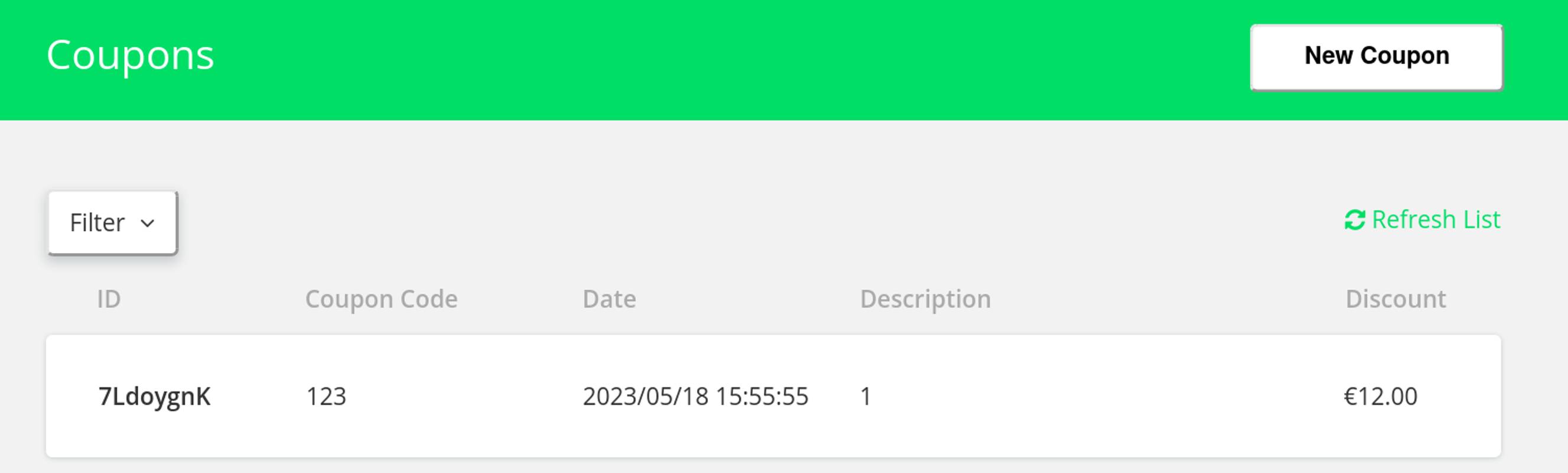
- Reviewing Existing Coupons: The 'Coupons' section provides an overview of all existing coupons along with their specifics like ID, coupon code, date, description, and discount.
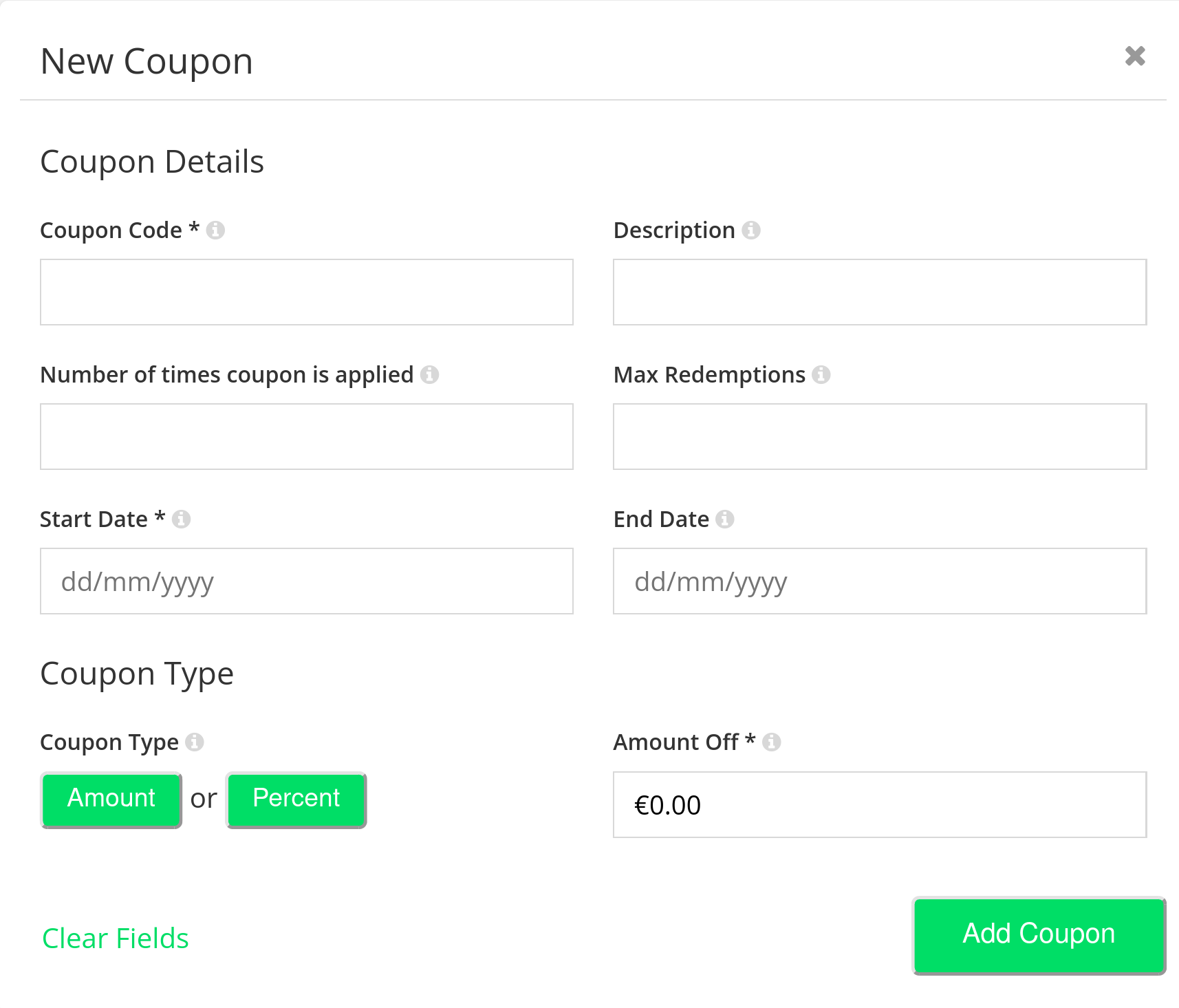
- Adding New Coupons: To introduce a new coupon, click on 'New Coupon'. A form will appear prompting you to fill out key fields such as coupon code, number of applications, start date, description, maximum redemptions, end date, and coupon type. Once completed, click on 'Add Coupon' to put your new coupon into action.
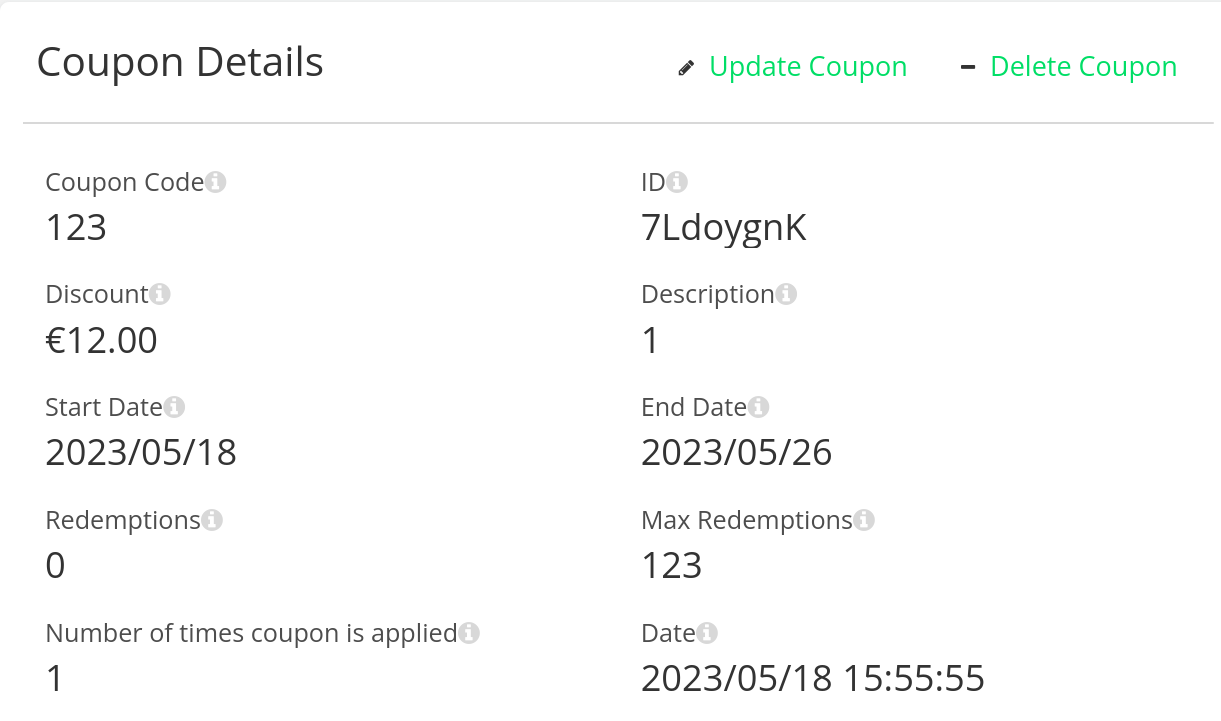
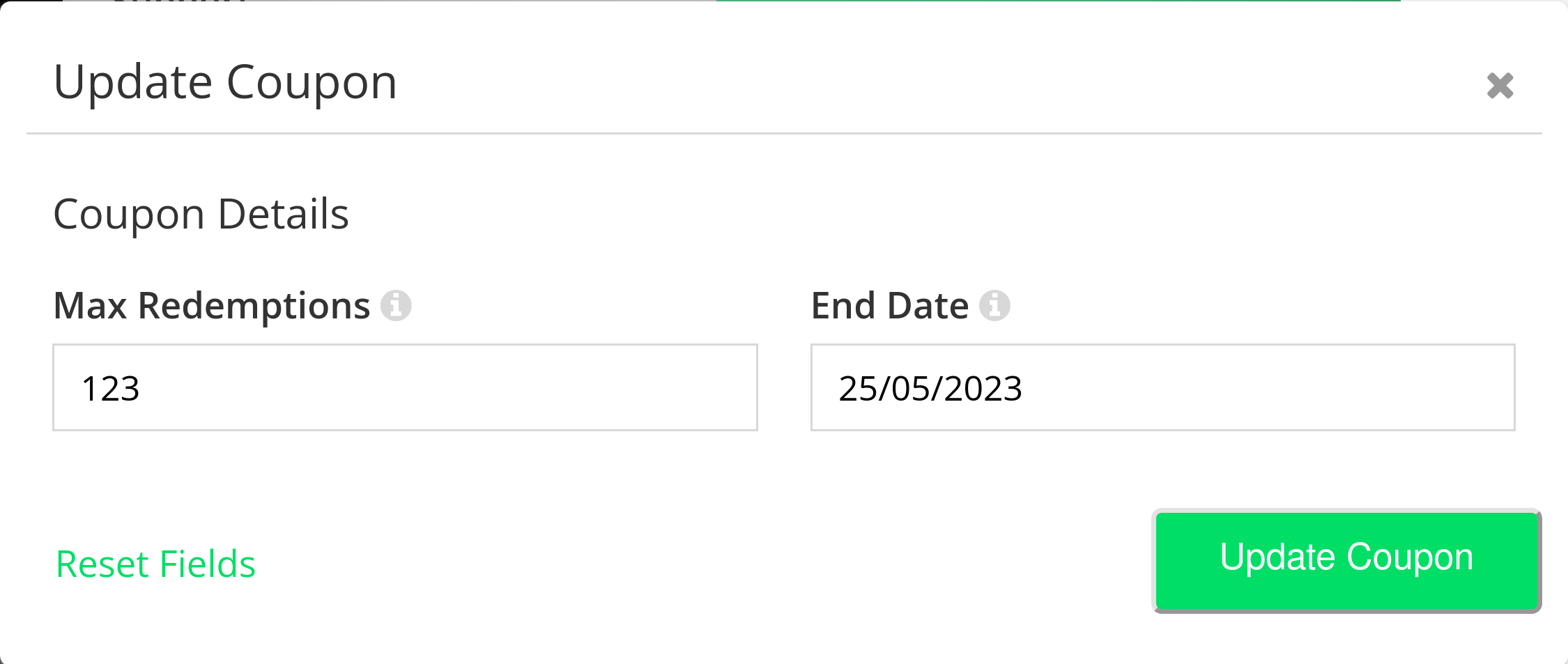
- Modifying Existing Coupons: If alterations to a coupon's details are required, simply select the coupon and click 'Update Coupon'. This will bring up a form where you can make your changes. Remember to save your amendments by clicking on 'Update Coupon' again.
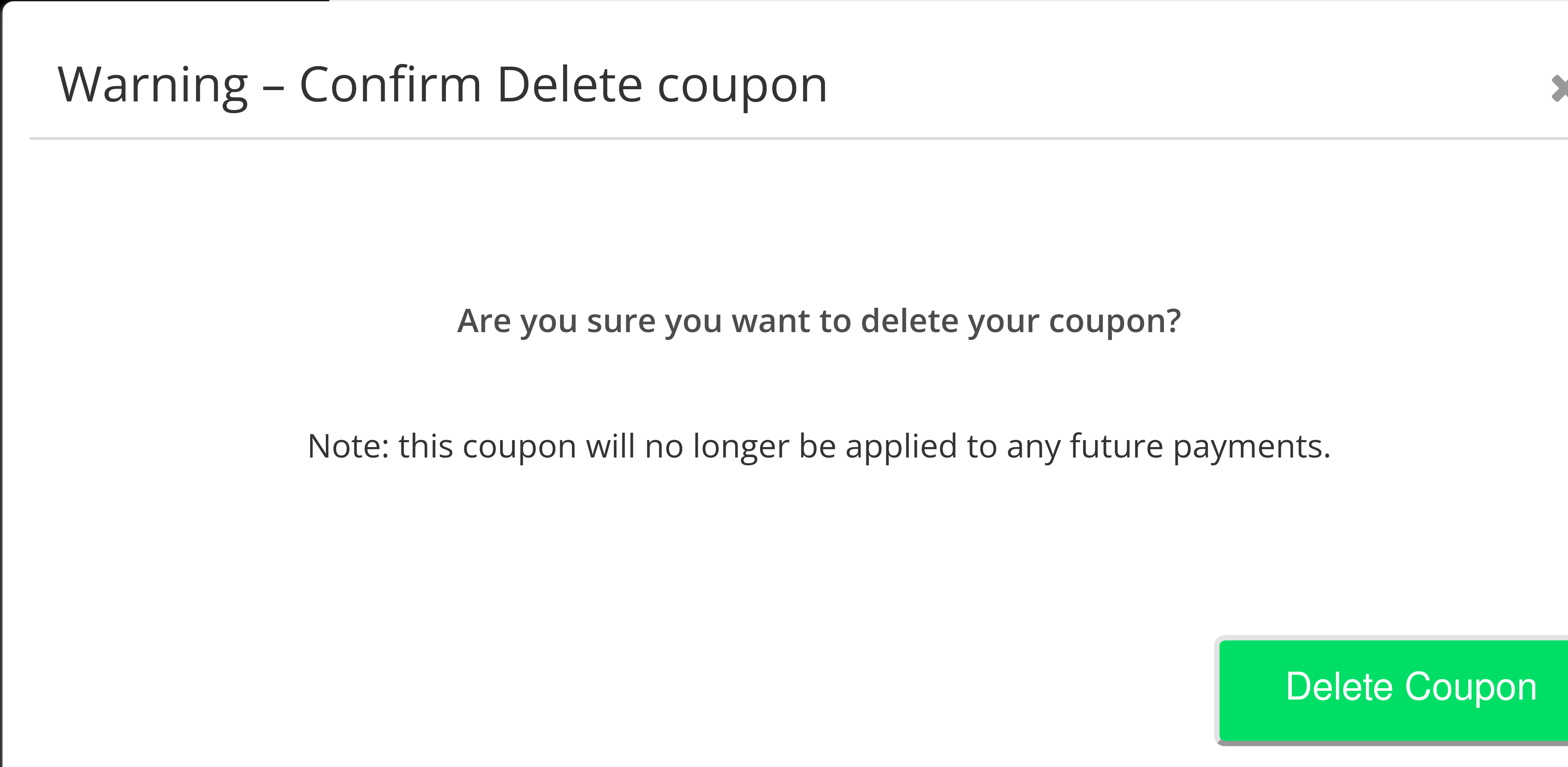
- Deleting Coupons: In the event that a coupon needs to be discarded, select 'Delete Coupon' adjacent to the specific coupon. Confirm your decision to delete to permanently remove the coupon from your store.
Remember: A successful coupon strategy is a powerful tool for bolstering customer acquisition and retention, driving sales, and nurturing robust customer relationships. Always keep your coupon offerings updated and aligned with your customer's needs to ensure they remain appealing and effective.