Manage Orders in Your Online Store
This guide provides step-by-step instructions on how to manage orders in your online store. Proper order management is crucial to ensuring smooth operations and maintaining customer satisfaction.
Prerequisites
-
Administrative access to your online store platform.
-
Ensure you are logged into your account.
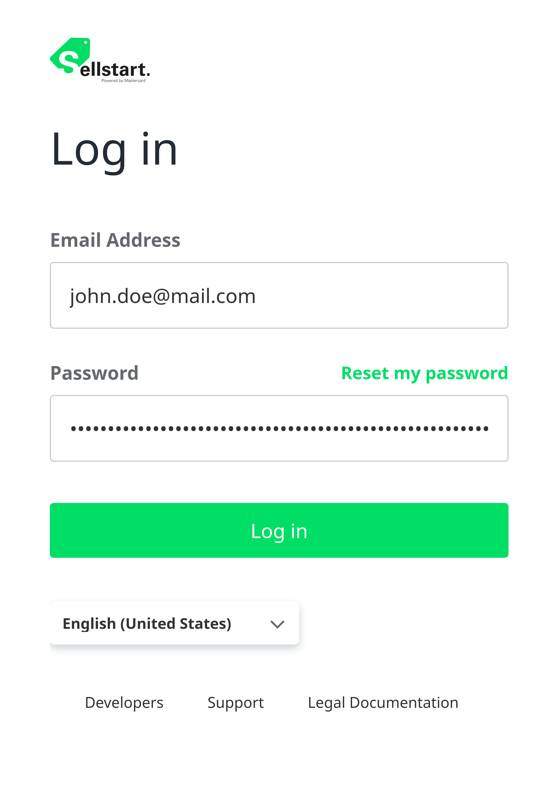
Step 1: Navigate to the Orders Page
Once logged into your account, locate and click on the "Orders" section or a similarly labeled option, usually located in the main menu or settings area.

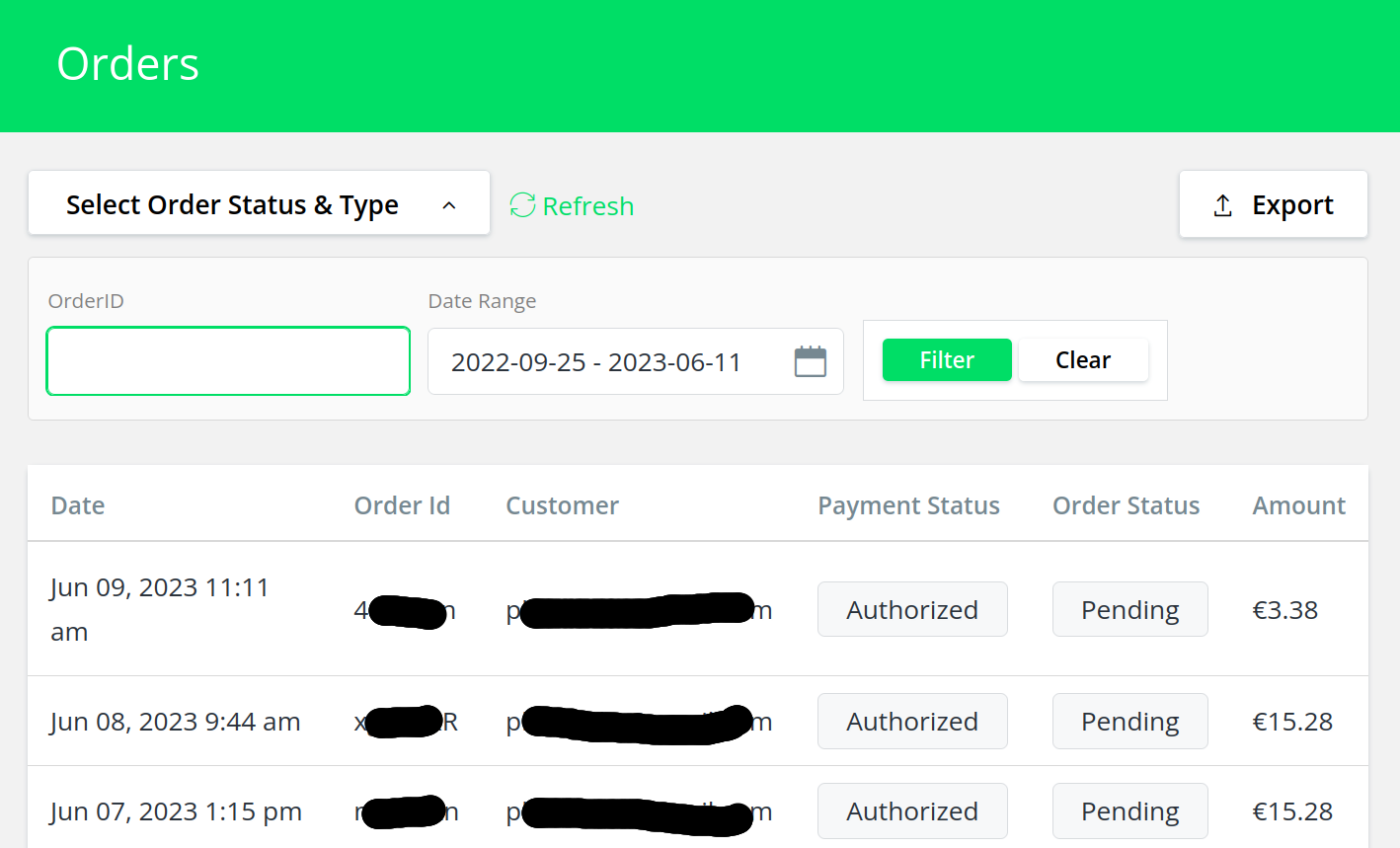
Step 2: Review Incoming Orders
On the Orders page, you'll see a list of all the orders placed in your store. Each order will typically include details such as the customer's name, order number, date of order, total amount, and order status.
Step 3: Manage Individual Orders
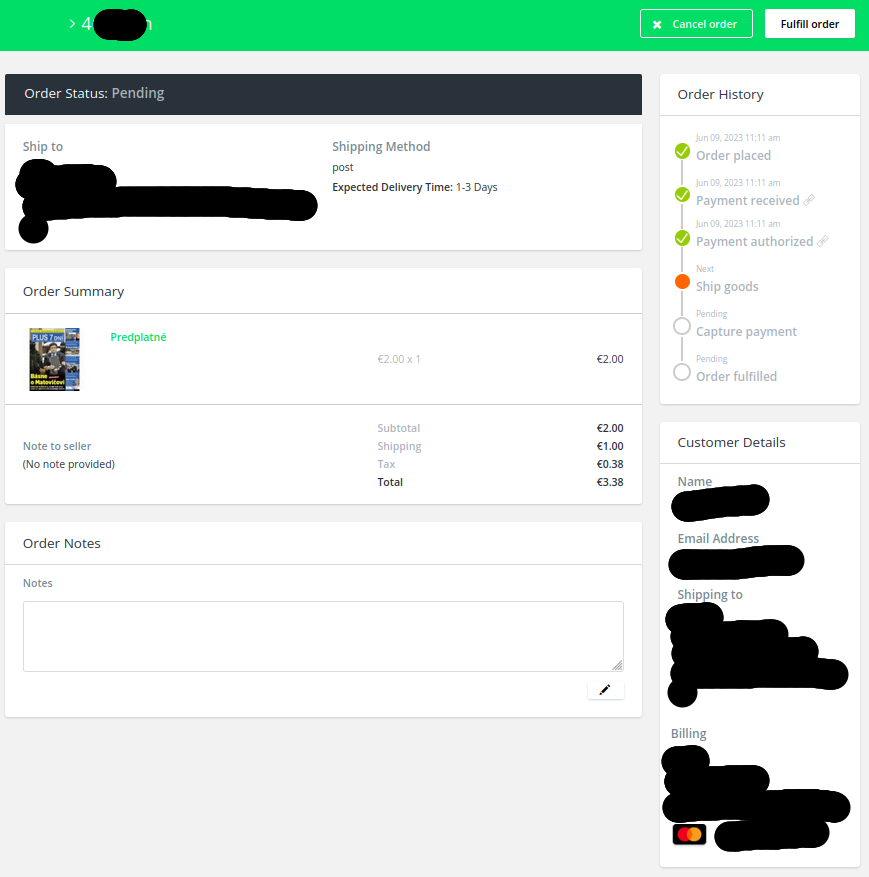
Click on an order to view more detailed information. Here, you can manage different aspects of the order:
-
Update Order Status: Change the order status from "Pending" to "Processing", "Completed", or "Cancelled", depending on the situation.
-
Edit Order Details: Modify the customer's information or the ordered items if necessary and permitted by your store's policy.
-
Add Notes: Attach notes to the order for internal use or to communicate with the customer.
-
Process Refunds: If your store's policy allows it, you may process refunds directly from the order page.
Step 4: Dispatch the Order
Once an order is ready to be shipped, you can mark it as dispatched. This usually involves updating the order status and adding a tracking number, if available.
Step 5: Archive or Delete Completed Orders
After an order has been fulfilled and delivered, you can choose to archive or delete the order to keep your order list organized. Please note that the ability to delete orders may depend on your store's policy and the platform you are using.
Conclusion
Managing orders effectively is vital to the successful operation of your online store. This includes reviewing incoming orders, managing individual orders, dispatching orders, and archiving or deleting completed orders. If you encounter any issues or require additional assistance, please reach out to our support team.