Managing Your Customers in Sellstart Store
- Access the Customer Management Panel: Sign in to your Sellstart admin panel and go to the 'Customers' section.
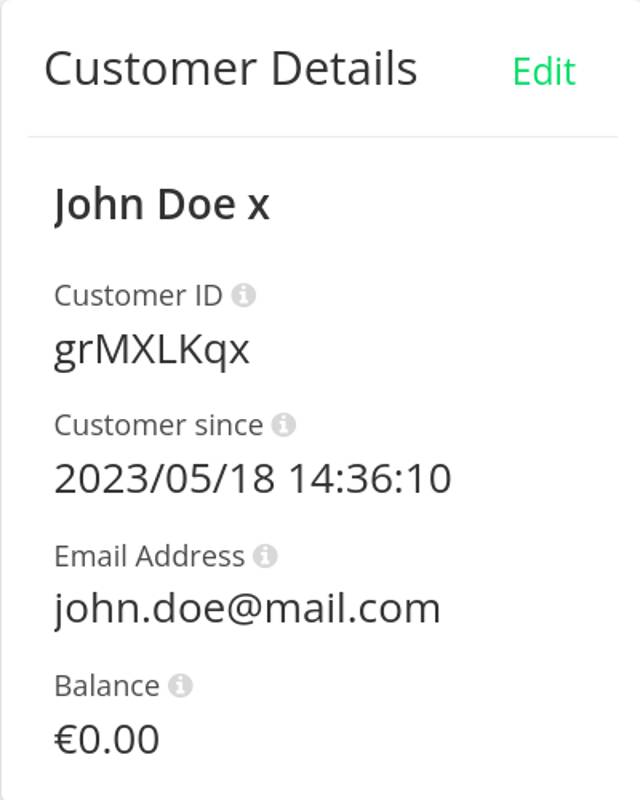
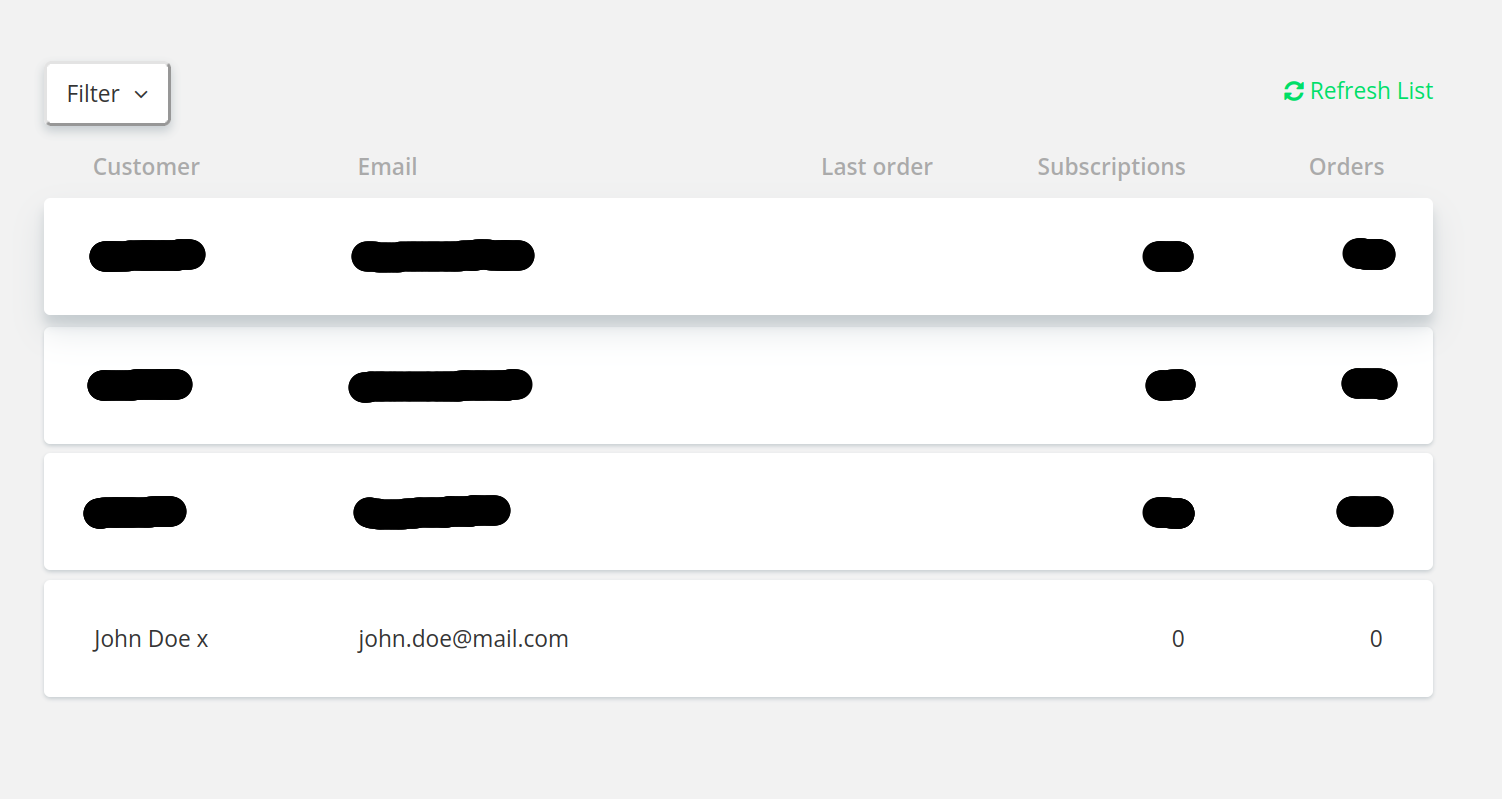
- Inspecting Customer Information: This area allows you to view comprehensive customer data including their name, contact information, order history, etc. Utilize this data to better understand your customers' buying habits and to personalize your services accordingly.
Here's a look at the 'Customer Details' page:
And the 'Customers' page:
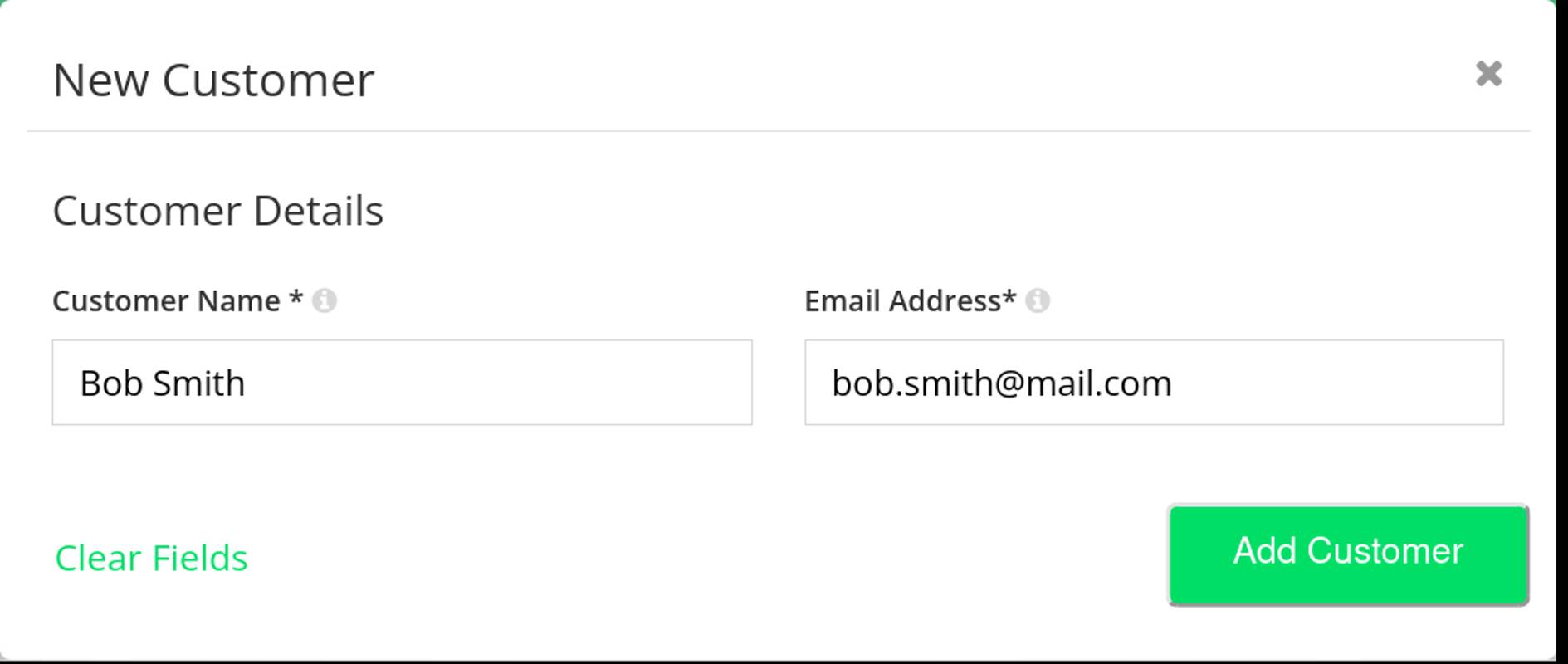
- Adding New Customers: To manually create a new customer profile, click on 'New Customer', and input the necessary details, such as their name, email, and contact number.
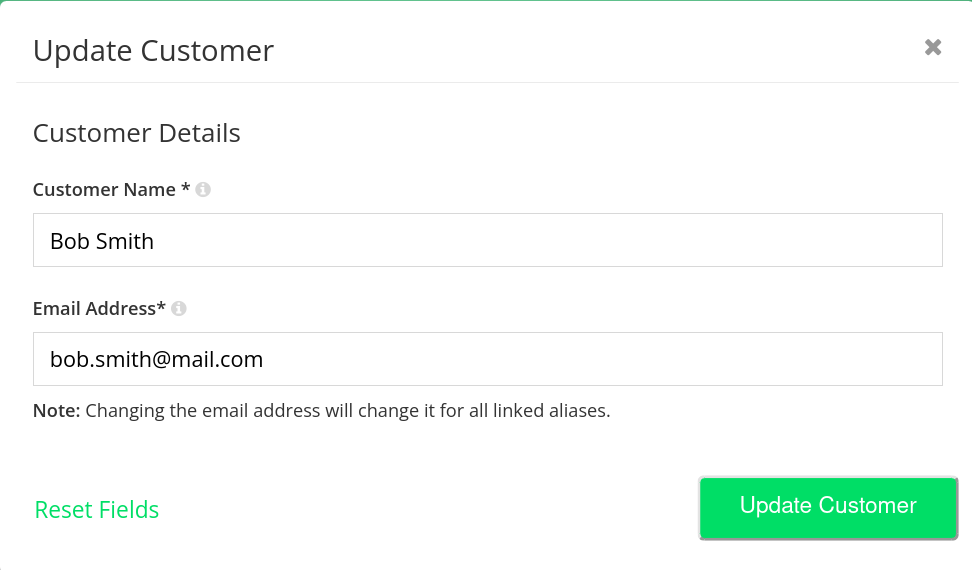
- Updating Customer Data: If you need to revise a customer's details, select the User, then hit the 'Edit' button next to the respective customer's name. Make the required modifications and press 'Update Customer' to save your changes.
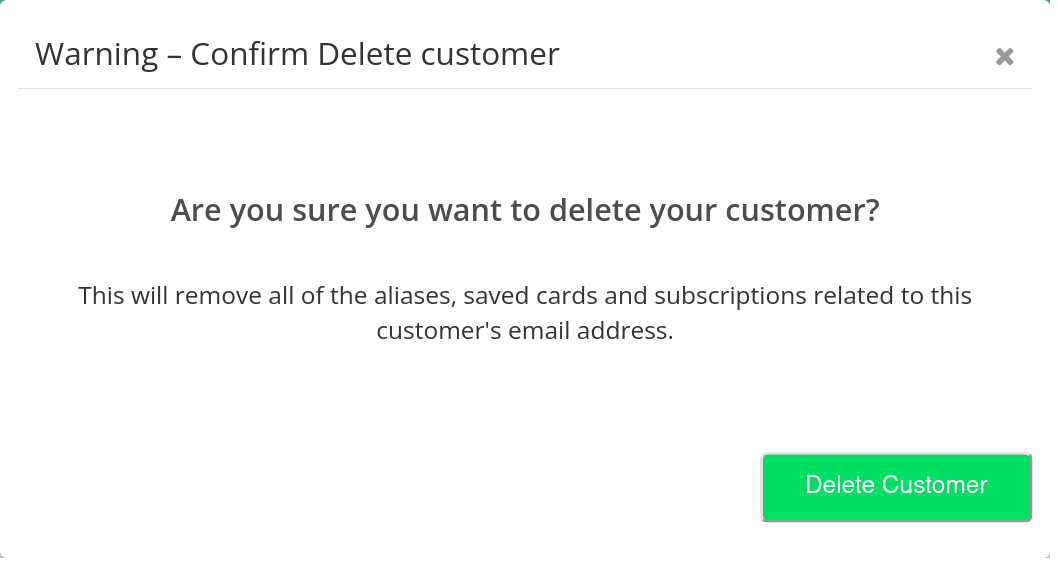
- Removing Customers: If you wish to delete a customer from your list, click on 'Delete Customer' located in the upper right corner of the 'Customer Details' page. Confirm your action to permanently remove the customer's data from your store.
Bear in mind, the key to sustaining customer satisfaction and loyalty is effective customer management. Regular review and updates of your customer database ensure you stay connected with your customers' needs and wants.