A Comprehensive Guide to Processing Refunds in Sellstart Store
- Accessing Refund Details: Start by logging into your Sellstart admin panel and navigating to the 'Refunds' section under 'Transactions'. Here you'll find a list of all transactions, including the details of each order and its corresponding refund status.
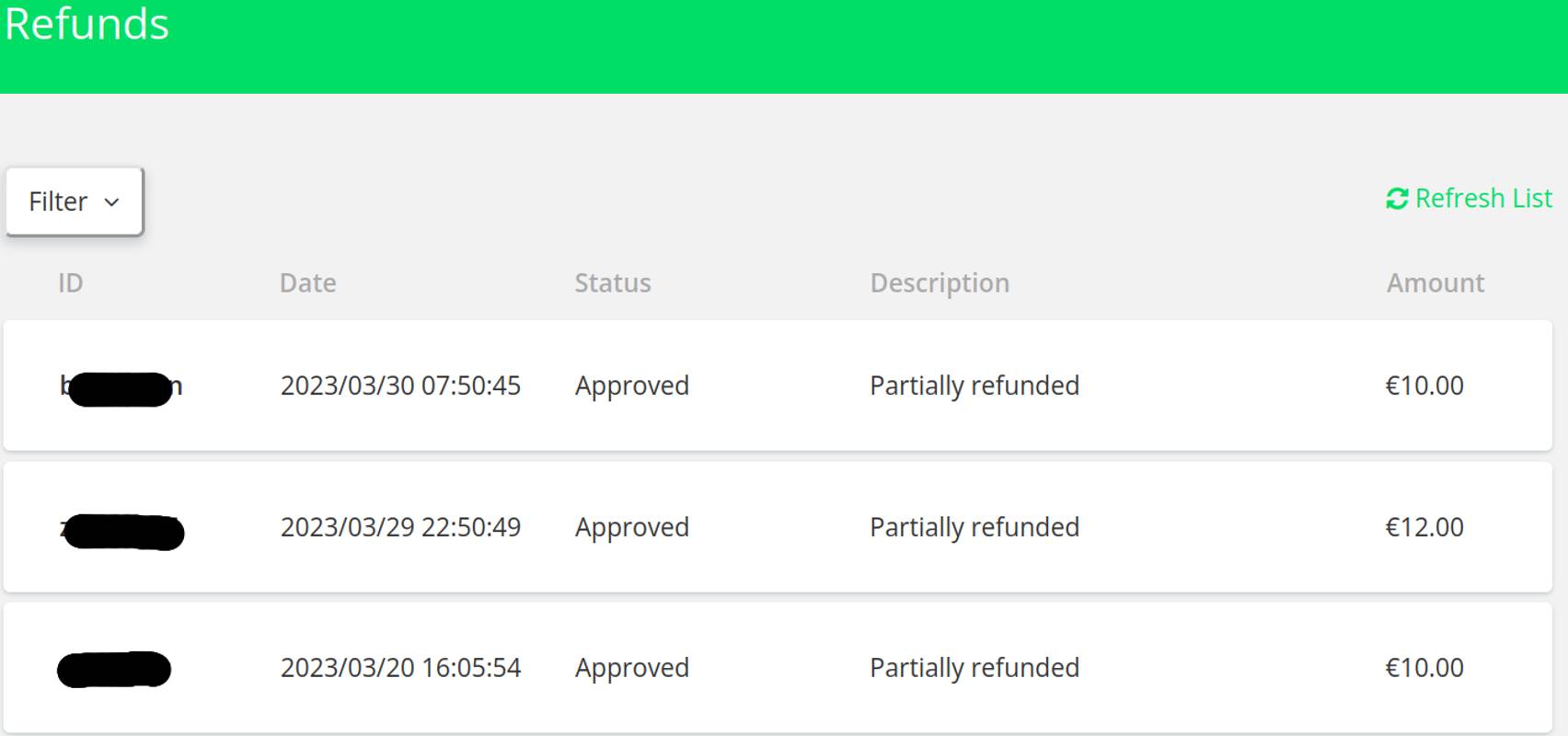
- Locating the Order: Find the order for which a refund needs to be issued in the 'Payments' section under 'Transactions'. You can do this by either scrolling through the list of transactions or using the filter function to find the specific order using sorting by date, ID, reference, amount, and status.
- Issuing the Refund: Once you've located the order, click on it to view the transaction details. Look for the "Refund" button – clicking on this will initiate the refund process.
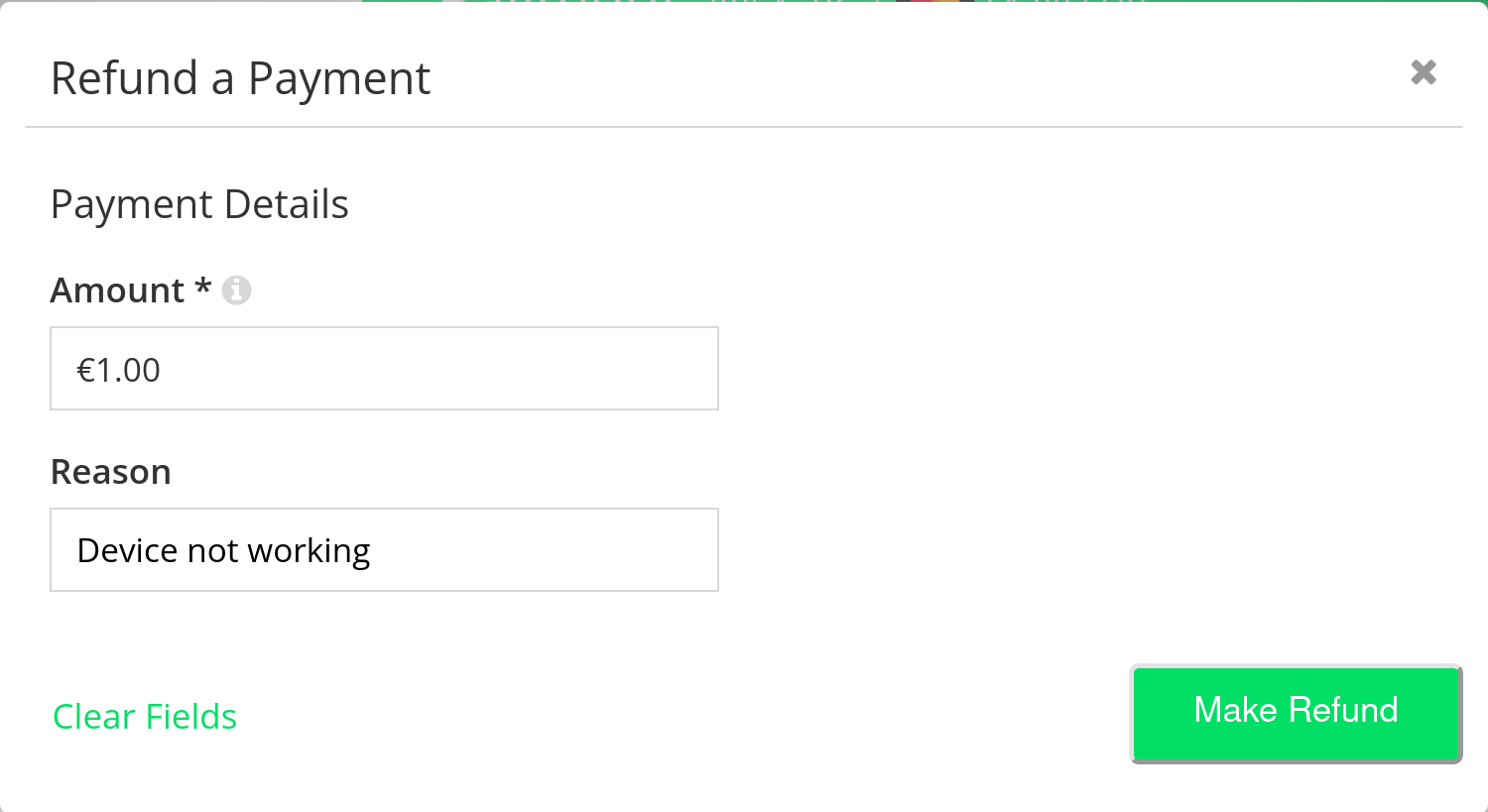
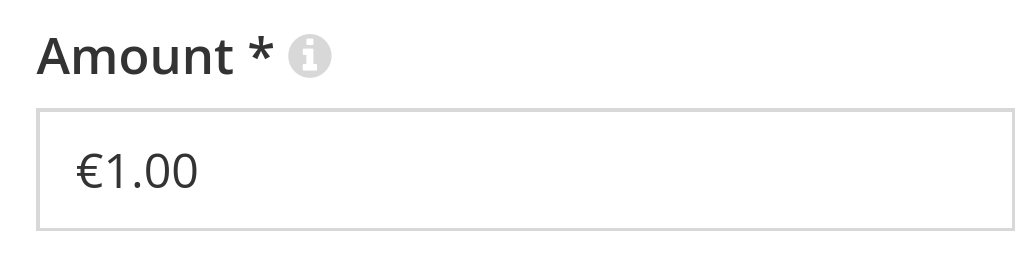
- Specifying Refund Amount: In the refund dialog box, specify the amount to be refunded. This can be either a partial or full refund, depending on the situation.
- Confirming the Refund: After entering the refund amount, click on the "Make Refund" button to finalize the refund. Once confirmed, the refund will be processed via the payment gateway used for the original transaction.
- Notifying the Customer: Ensure to notify the customer about the refund. This can be done manually via email, or automatically if your Sellstart store is set up with automated refund notifications.
Remember, prompt and accurate processing of refunds is a key aspect of customer service. It helps to build trust with your customers, which in turn can lead to increased customer retention and loyalty.