Guide to Managing Payments for Orders in Sellstart Store
- Accessing the Payments Section: Begin by logging into your Sellstart admin panel. From there, navigate to the 'Payments' section under the 'Transactions' category.
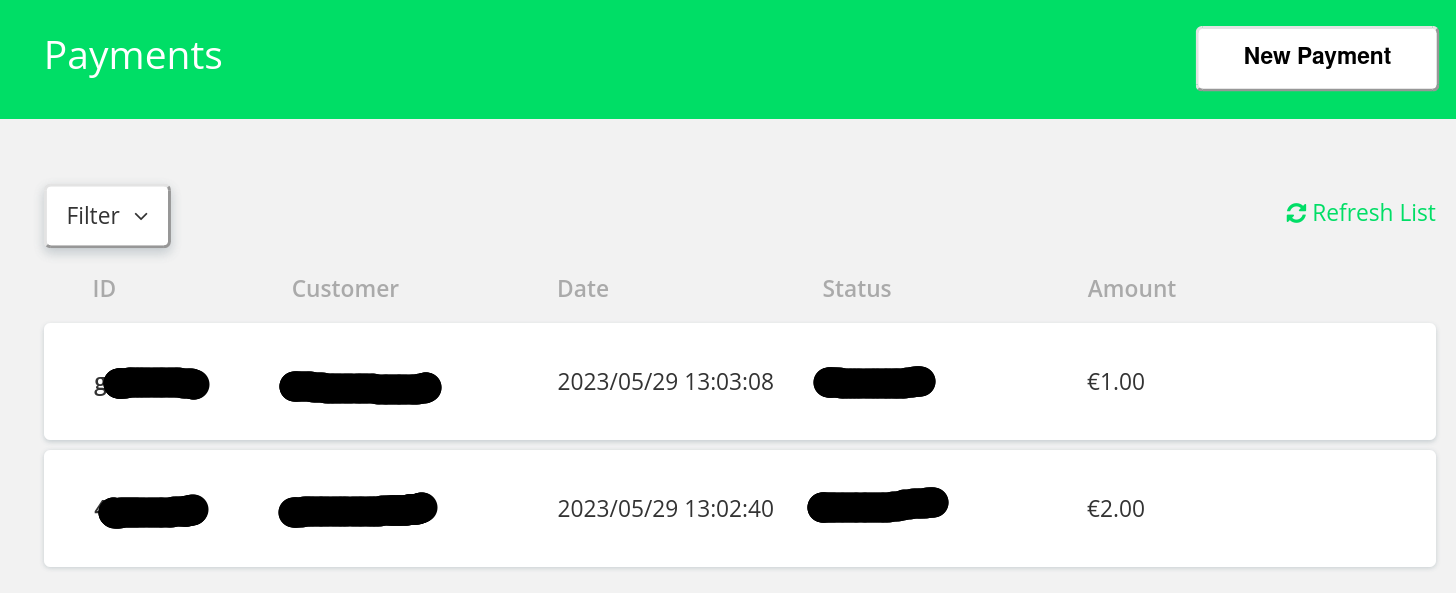
- Viewing Payment Details: The 'Payments' page will display a comprehensive list of all payment transactions. Each entry provides crucial information such as the order number, customer name, date, total amount, and payment status.
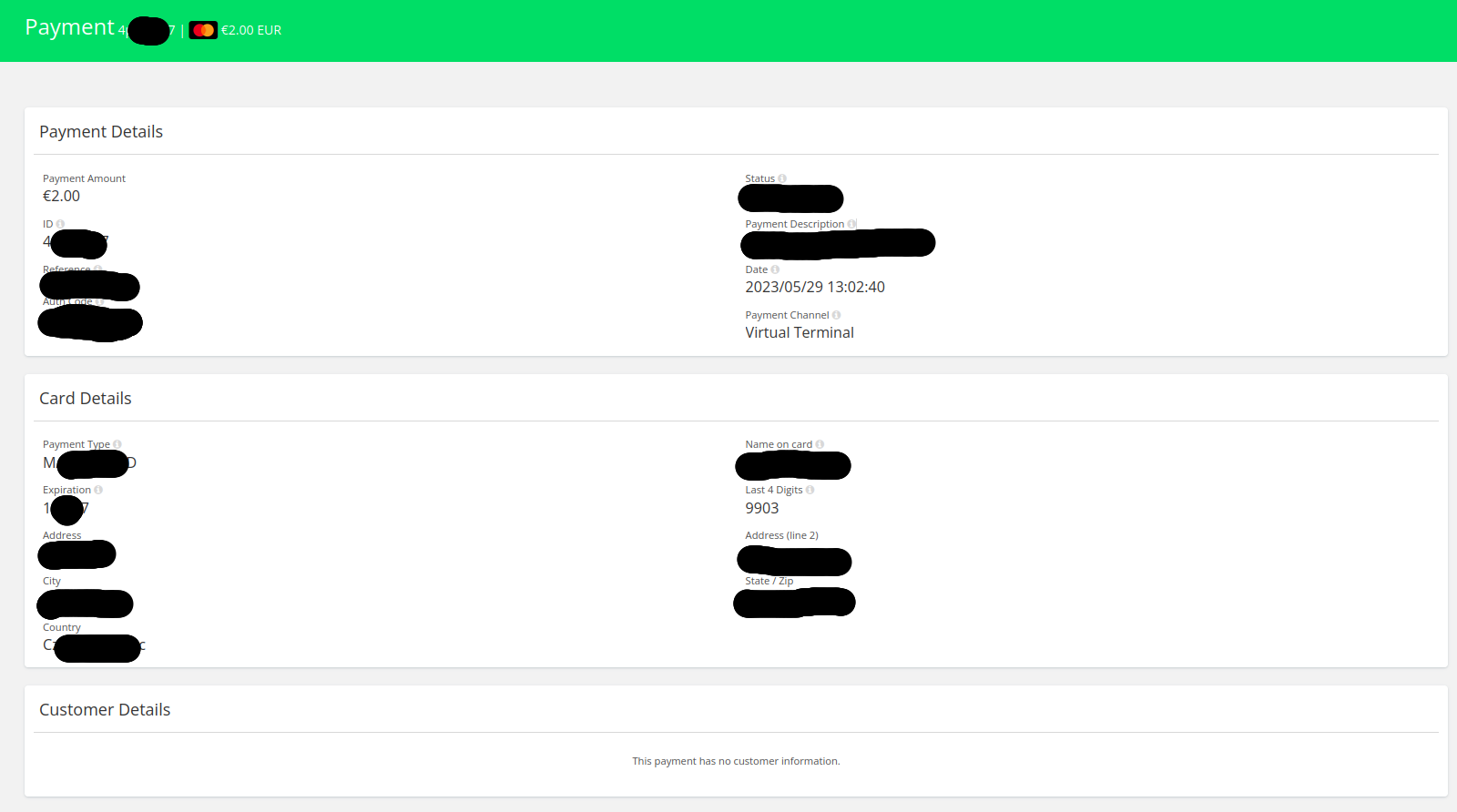
- Processing Payments: Payments for orders are typically processed automatically via the payment gateway integrated into your Sellstart store. However, you can manually update the payment status for each order. Simply click on the respective order and change the status as necessary.
- Refunding Payments: If a refund needs to be issued, locate the respective order and click on 'Refund'. You'll need to confirm the refund amount before proceeding. Be aware, refund policies can vary based on the payment gateway used.
- Verifying Payments: Ensure the payments received match the orders delivered. Regularly cross-check your payments with your order records to avoid discrepancies. Any mismatches should be investigated immediately.
- Resolving Failed Payments: In case of a failed payment, you can contact the customer directly to resolve the issue. An alternative payment method may be requested, or the customer can choose to retry the failed payment.
Remember, successful management of payments is paramount to maintaining a healthy cash flow for your business and ensuring customer satisfaction. Regularly check and update your payment records to prevent potential financial issues.