Security Question
This section provides a step-by-step guide on how to change your security questions, which are used as an additional layer of security to verify your identity when accessing your account or performing sensitive actions.
Step 1: Log in to your account
-
Open your preferred web browser and navigate to the login page of the platform.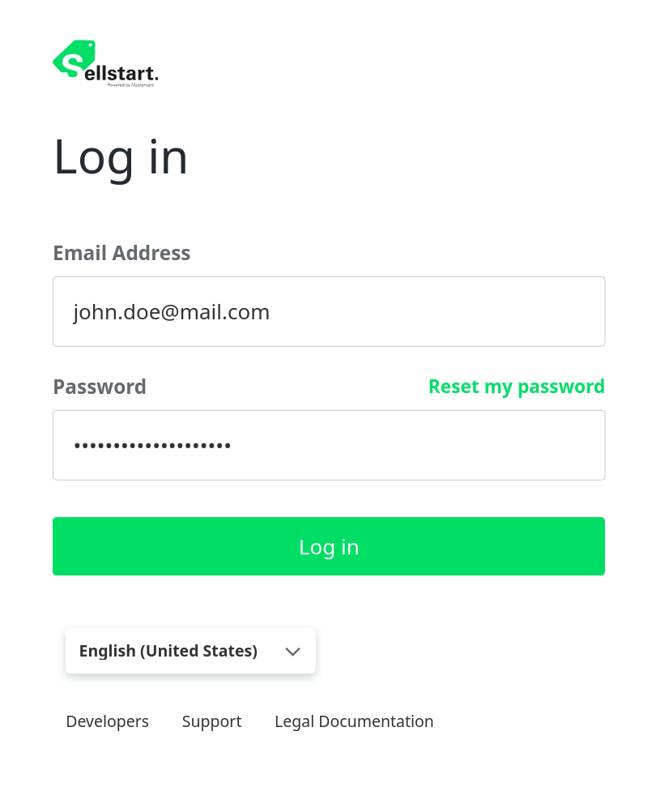
-
Enter your email address and password, and click on the “Log in” button.
Step 2: Access your account settings
-
Once logged in, locate the “Account Settings” option on the left side of the application, typically within the main menu or a collapsible sidebar.

-
Click on “Account Settings” or a similar option to open the settings page.
Step 3: Navigate to the security questions section
-
On the Account Settings page, locate the “Security Question 1” and “Security Question 2” input fields with these labels or a similarly named area, under the header “Update your details.” This section is where you can manage your security questions and answers.


-
Click on a Security Question list. A list with available Security Questions will pop up. Choose one that interests you, then provide the answer for this question in the proper input field with the label “Security Answer 1” or “Security Answer 2.”
Step 4: Change your security questions
-
You will see a list of your current security questions and their corresponding input fields for answers. To change a security question, click on the list, then select a new question from the list that might interest you.
-
A dropdown menu or selection box will appear, containing a list of available security questions. Choose a new security question from the list, making sure it's something you can remember and that is not easily guessable by others.
-
In the input field below the new security question, enter your answer to the question. Be sure to provide an answer that is both accurate and memorable, as you may need to provide this information in the future to verify your identity.



-
Click on “Save” or a similar button to update your security question and answer.

Step 5: Update additional security questions (if applicable)
-
If you have multiple security questions and would like to update them, repeat Steps 4 and 5 for each security question you wish to change.
Step 6: Log out and log back in (optional)
-
To verify that your changes have been saved, you can log out of your account by clicking on the green text “Logout” in the left bottom corner.

-
Log back in using your email address and password to confirm that your security questions have been updated successfully.
Remember to keep your security questions and answers confidential and up-to-date. If you encounter any issues or have questions, please contact the support team for assistance.